
How to Turn Off Live Caption on Any Device (2026 Guide): Fix Auto Captions Instantly on Android, iPhone, Windows & Chrome
Ever opened a video, joined a call, or watched something quietly—only to see random text popping up on your screen?
That’s Live Caption, and while it’s designed to help, it can quickly become frustrating.
It blocks your screen
Turns on automatically
Interrupts your experience
The worst part?
Most people don’t even know how it got enabled in the first place.
In this ultimate, expert-level guide, you’ll learn:
How to turn off Live Caption on ANY device
How to stop it from turning on automatically
Hidden settings most users miss
Advanced fixes and troubleshooting
Let’s take full control and make your device distraction-free again.
What Is Live Caption?
Live Caption is a real-time speech-to-text feature that converts audio into text instantly.
Key Function:
- Converts any sound into captions
- Works offline
- Uses AI-based processing
It acts like a live transcription system inside your device.
How Live Caption Works Behind the Scenes
This feature uses:
- On-device machine learning
- Audio recognition
- Real-time processing
Important Insight:
It doesn’t need internet — everything happens locally.
That’s why:
- It’s fast
- It’s private
- But also resource-consuming
Why Live Caption Turns On Automatically
This is where most users struggle.
Common Reasons:
- Volume button shortcut
- Quick settings toggle
- System updates
- App triggers (Zoom, Chrome, etc.)
This is the #1 problem competitors ignore.
Why You Might Want to Turn It Off
Major Reasons:
- Blocks screen content
- Distracts during videos
- Uses battery
- Not always accurate
Many users prefer manual captions instead.
How to Turn Off Live Caption on Android
Method 1: Settings
- Open Settings
- Go to Accessibility
- Tap Live Caption
- Turn OFF toggle
Method 2: Quick Settings
- Swipe down
- Tap Live Caption icon
Method 3: Volume Button Shortcut
- Press volume button
- Tap caption icon
- Disable instantly
Fastest method for real-time situations.
How to Disable Live Caption Permanently on Android
Pro Tip:
Turn off ALL triggers:
- Disable in Accessibility
- Remove from Quick Settings
- Avoid volume shortcut
This prevents auto-activation.
How to Turn Off Live Caption on Google Chrome
Steps:
- Open Chrome
- Go to Settings
- Click Accessibility
- Turn off Live Caption
Quick Access Trick:
Type:
chrome://settings/accessibility
Chrome vs Website Captions
Key Insight:
- Chrome Live Caption = system-wide
- YouTube captions = platform-specific
Turning one off does NOT affect the other.
How to Turn Off Live Caption on Facebook
Video Captions:
- Play video
- Click CC
- Turn OFF
Settings Method:
- Go to Settings
- Video Preferences
- Disable captions
Calls:
- Open call menu
- Turn off captions
How to Turn Off Live Caption on Mac
Steps:
- Open System Settings
- Go to Accessibility
- Click Live Caption
- Turn OFF
Quick Method:
- Control Center → Accessibility → Disable
Mac Keyboard Shortcut Method
- Press Command + F5
- Toggle captions
Fastest pro-level method.
How to Turn Off Live Caption on Windows 10
Steps:
- Open Settings
- Ease of Access
- Captions
- Turn OFF
How to Turn Off Live Caption on Windows 11
Steps:
- Settings
- Accessibility
- Captions
- Disable
Shortcut:
Windows + Ctrl + L
How to Turn Off Live Caption on iPhone & iPad
Steps:
- Open Settings
- Accessibility
- Subtitles & Captioning
- Turn OFF
Note: iOS captions work differently than Android.
How to Stop Live Caption from Turning On Again
Do This:
- Disable shortcuts
- Check updates
- Review app permissions
This is the permanent fix.

Troubleshooting Common Live Caption Issues
Problem: Keeps turning on
Fix: Disable shortcuts
Problem: Not turning off
Fix: Restart device
Problem: Missing setting
Fix: Update OS
Quick Fix Methods (For Urgent Situations)
- Volume button toggle
- Quick settings
- Keyboard shortcut
Best for instant control.
Advanced Settings You Should Know
Customize:
- Caption size
- Language
- Style
Helps if you want better control instead of disabling.
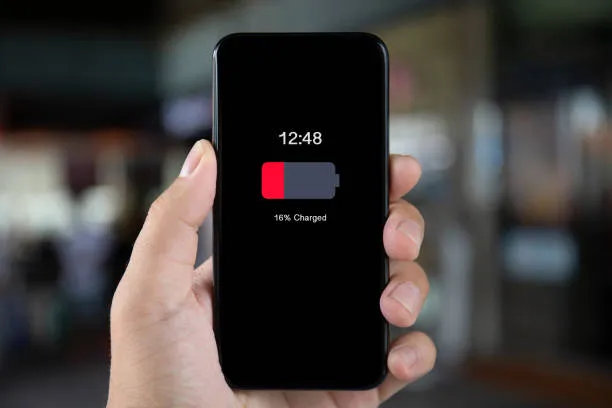
Does Live Caption Affect Battery?
Yes, slightly.
Because:
- Constant audio processing
- Background activity
Turning it off can improve performance.
Privacy & Security Explained
Good news:
Works offline
No data sharing
Private processing
Live Caption vs Closed Captions
| Feature | Live Caption | Closed Caption |
|---|---|---|
| Source | Auto-generated | Pre-made |
| Accuracy | Medium | High |
| Control | System-wide | Platform-based |
Who Should Keep It ON?
- Hearing impaired users
- Noisy environments
- Silent viewing
Who Should Turn It OFF?
- Regular users
- Gamers
- Video watchers
Final Expert Tips
- Learn shortcuts
- Disable triggers
- Customize before turning off
FAQs
1. Why does Live Caption keep turning on automatically?
Because of shortcuts, updates, or app triggers.
2. Can I disable Live Caption permanently?
Yes, by disabling all triggers and accessibility settings.
3. Does Live Caption work offline?
Yes, it uses on-device processing.
4. Will turning it off improve battery life?
Slightly, yes.
5. Does it affect YouTube captions?
No, those are separate.
6. Can I customize captions?
Yes, before disabling.
7. Is Live Caption accurate?
Mostly, but errors can happen.
8. Can I move caption box?
Yes, on most devices.
9. Why can’t I find Live Caption?
Your device may not support it.
10. Is it safe to use?
Yes, fully private.
11. Can I turn it on again later?
Yes, anytime.
12. Does it work on calls?
Yes, including video calls.
Conclusion
Live Caption is a powerful feature — but only when you actually need it.
If it’s constantly interrupting your experience, the solution is simple:
Take control of your settings
Disable unnecessary triggers
Use it only when needed
By following this guide, you’re not just turning off captions…
You’re optimizing your entire device experience.