
How to Turn Off Subtitles on Roku TV: A Simple Guide
Subtitles can be helpful—until they’re not. Whether you’re watching a movie, streaming your favorite show, or browsing through apps, subtitles (or closed captions) can sometimes become distracting, unnecessary, or even annoying.
How to Turn Off Subtitles on Roku TV: A Simple Guide
, you might have noticed that subtitles can turn on automatically or stay enabled across different apps. The process of turning them off isn’t always obvious, especially because Roku offers multiple ways to control captions depending on how you’re watching content.
This guide will walk you through every possible method to turn off subtitles on a Roku TV. From remote shortcuts to system-wide settings, app-specific fixes, and troubleshooting steps—you won’t miss anything.
Understanding Subtitles vs Closed Captions
Before diving into the steps, it’s important to understand the difference:
- Subtitles: Display dialogue only (usually for language translation).
- Closed Captions (CC): Include dialogue + sound effects (e.g., [door slams]).
On Roku, both are often controlled under “Captions” settings, which can cause confusion.
Why Subtitles Keep Turning On
Many users wonder why subtitles appear automatically. Common reasons include:
- Default Roku accessibility settings
- App-specific caption settings (like Netflix or YouTube)
- Accidental remote button presses
- Content that forces captions on
- Firmware or software glitches
Understanding the source helps you disable them permanently.
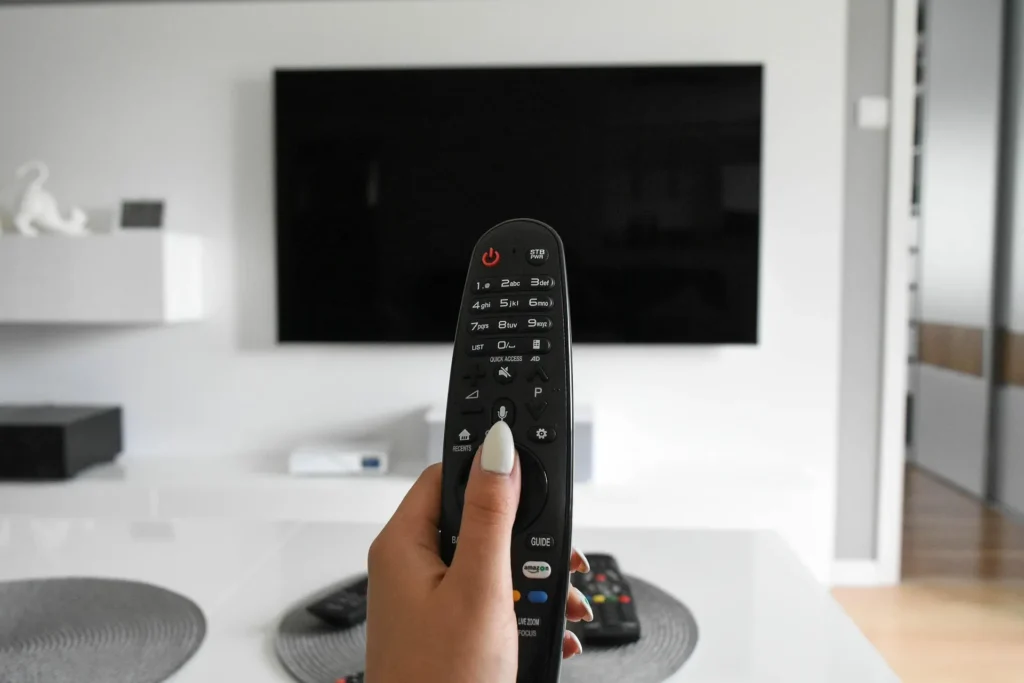
Quickest Method: Using the Roku Remote
This is the fastest way to turn off subtitles while watching something.
Steps:
- Press the Star (*) button on your Roku remote
- A side menu will appear
- Select “Closed Captioning”
- Choose “Off”
This instantly disables subtitles for the current content.

Turning Off Subtitles from Roku Settings (System-Wide)
If subtitles keep coming back, you need to disable them globally.
Steps:
- Go to Home
- Navigate to Settings
- Select Accessibility
- Click Captions Mode
- Choose Off
This ensures subtitles stay disabled across all apps.
Turning Off Subtitles During Streaming (In-App Method)
Some apps override Roku settings.
Example process:
- While watching content:
- Press Up or Down arrow
- Look for Subtitles/CC icon
- Select Off
- While watching content:
Each app may have slightly different controls.
How to Turn Off Subtitles on Netflix (Roku)
Netflix has its own caption settings.
Steps:
- Play any show
- Press Down arrow
- Open Audio & Subtitles
- Set subtitles to Off
How to Turn Off Subtitles on YouTube (Roku)
Steps:
- Play a video
- Press Up
- Select CC icon
- Turn captions Off
How to Turn Off Subtitles on Hulu
Steps:
- Start playback
- Press Up
- Go to Settings
- Turn captions Off
Disabling Subtitles on Amazon Prime Video
Steps:
- Play a video
- Press Up
- Select Subtitles
- Choose Off

Roku Mobile App Method
If your remote isn’t working, use your phone.
Steps:
- Open Roku mobile app
- Connect to your TV
- Tap Remote
- Press Star (*)
- Disable captions
Using Voice Commands
If your Roku supports voice:
Say:
- “Turn off captions”
- “Disable subtitles”
Quick and hands-free.
Fixing Subtitles That Won’t Turn Off
If subtitles keep reappearing:
Try:
- Restart your Roku TV
- Update software
- Check app-specific settings
- Log out and log back into apps
Restarting Your Roku TV
Steps:
- Go to Settings
- Select System
- Click Power
- Choose System Restart
This fixes temporary glitches.

Updating Roku Software
Outdated software can cause bugs.
Steps:
- Go to Settings
- Select System
- Click System Update
- Check for updates
Resetting Caption Preferences
Sometimes settings conflict.
Fix:
- Turn captions ON
- Restart TV
- Turn captions OFF again
This resets behavior.
Factory Reset (Last Resort)
Only use if nothing works.
Steps:
- Go to Settings
- Select System
- Click Advanced System Settings
- Choose Factory Reset
This erases all data.

Accessibility Settings Explained
Roku includes accessibility features for users who need captions.
Options include:
- Always On
- On Replay
- Off
Make sure it’s set correctly.
“On Replay” Mode Explained
This setting shows subtitles only when you rewind.
To disable:
- Go to Accessibility
- Set Captions Mode to Off
Customizing Subtitle Appearance
Even if you keep subtitles, you can adjust:
- Font size
- Color
- Background
- Opacity
Steps:
- Settings → Accessibility → Caption Style
Differences Between Roku TV Brands
Roku TVs are made by different brands like:
- TCL
- Hisense
- Sharp
Settings remain mostly the same, but menu layouts may differ slightly.

Troubleshooting App-Specific Issues
If only one app shows subtitles:
- Check that app’s settings
- Update the app
- Reinstall it
When Subtitles Are Forced
Some content (especially foreign films) may force subtitles.
In this case:
- They cannot be disabled completely
- Only appearance can be adjusted
Remote Button Shortcuts You Should Know
Helpful buttons:
- Star (*) → Caption settings
- Up/Down → Playback options
- Back → Exit menu
Preventing Subtitles in the Future
To avoid subtitles coming back:
- Disable system-wide captions
- Turn off captions inside apps
- Avoid pressing the Star button accidentally
Common Mistakes to Avoid
- Turning captions off in only one place
- Ignoring app-level settings
- Not restarting after changes
- Confusing subtitles with audio settings
Advanced Tips for Power Users
- Use private listening mode carefully
- Sync Roku settings with account preferences
- Check HDMI input settings (for external devices)

Subtitles on External Devices (Cable, PS5, etc.)
If using external devices:
Subtitles may come from:
- Cable box
- Gaming console
- Streaming stick
Turn them off from that device—not Roku.
Roku vs Other Smart TVs
Roku is:
- Simpler
- Faster for captions control
Compared to others, Roku provides:
- Quick toggle via remote
- Centralized settings
(FAQs)
Q1: Why do subtitles keep turning back on?
Because of app-level overrides or accessibility settings.
Q2: Can I turn off subtitles permanently?
Yes, by disabling them in both system and app settings.
Q3: Why does Netflix still show subtitles?
Netflix has its own settings—you must disable them there.
Q4: What is “On Replay”?
It shows captions only when rewinding content.
Q5: Can I customize subtitles instead of removing them?
Yes, through Caption Style settings.
Final Thoughts
Turning off subtitles on Roku TV may seem simple—but due to multiple layers of control (system settings, app settings, and remote shortcuts), it can become confusing.
The key is understanding this:
There is no single “master switch” unless you configure both system-wide and app-specific settings properly.
Once you follow all the steps outlined in this guide, you’ll have full control over your viewing experience—free from unwanted subtitles.
Conclusion
Subtitles are a powerful accessibility feature, but they should always be under your control—not forced upon your viewing experience.
By using this comprehensive guide, you now know:
- Every method to turn off subtitles
- How to prevent them from returning
- How to troubleshoot issues
- How to manage settings across apps
Take a few minutes to configure your Roku TV correctly, and you’ll never have to deal with unwanted captions again.